


With this article we continue to share our experience of implementing websites with free popular engines like WordPress, Drupal, Joomla etc. After delivering hundreds of such projects to our clients, we have amassed a number of tips/solutions which we think may be useful for other developers or clients. If you are interested in gaining solutions to more development problems you face, please feel free to contact us – we’ll try to cover them as well.
If you have ever tried to develop a WordPress site, you will most probably have been faced with the following problem. When you develop a WordPress site, there is a 99.9% chance that, after development, you will need to move it from one server to another – maybe more than once. At first glance, there are no issues for the less experienced developer – you just copy files and database to the new server and update the config file with the correct settings. After that, you open your home page and see it working – everything looks ok. But, when you start clicking through the site, you may be redirected to your initial domain (your development version) or extra folders may appear in your links so that the links are incorrect. Furthermore, some images may be missing or some new features provided by third party plugins may not be working.
Why does this happen? The answer is simple – during the installation, WordPress saves the base URL in its settings and in many places, including posts/pages content, it saves absolute URLs in the database. This means that, after you move the site, you need to update the URLs in many different places, involving extra work for you every time you need to move your site. Also, this makes delivering the project files to the client (in case the client wants to install the site manually), very difficult indeed.
WordPress database migration solution
In order to solve this problem we have developed a simple PHP script which performs all the required actions automatically, you just need to copy it to the WordPress folder near the wp-config.php file, run in browser and follow the onscreen instructions.
Important: We recommend you backup your database before running wp-host-update.php.
Below is a detailed step-by-step tutorial.
- Upload wp-host-update.php file to your WordPress root folder
- Point your browser to this script by pasting http://yourdomain.com/wp-folder/wp-host-update.php to the browser address bar, replacing “yourdomain.com” and “wp-folder” by your real values
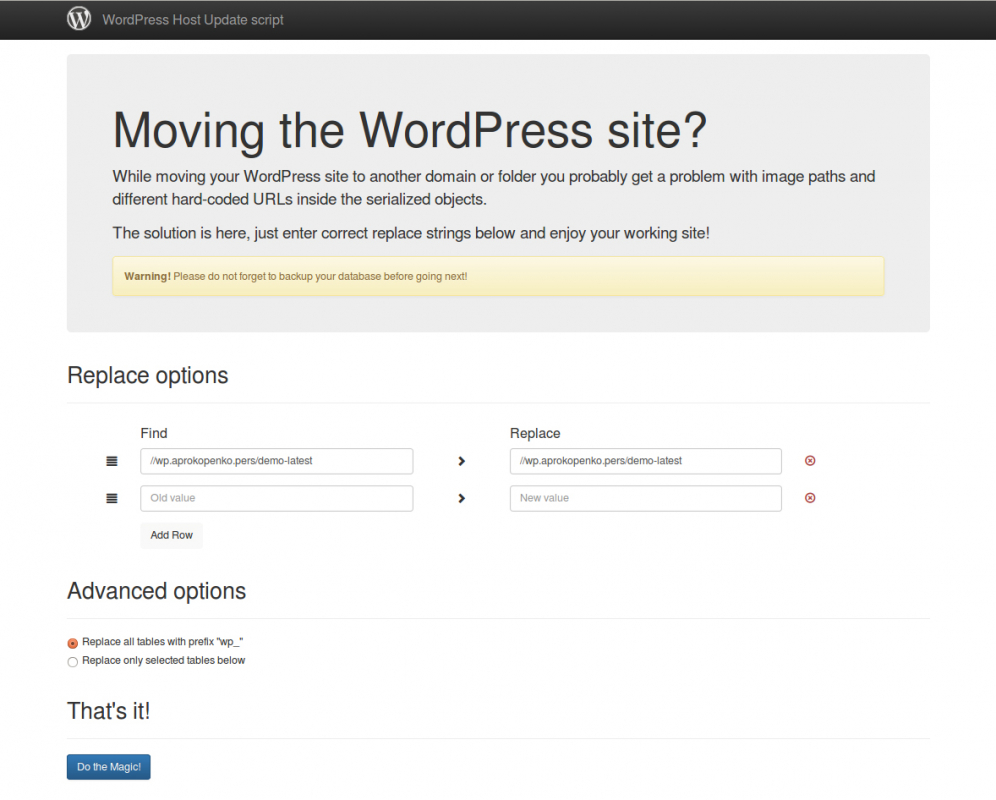
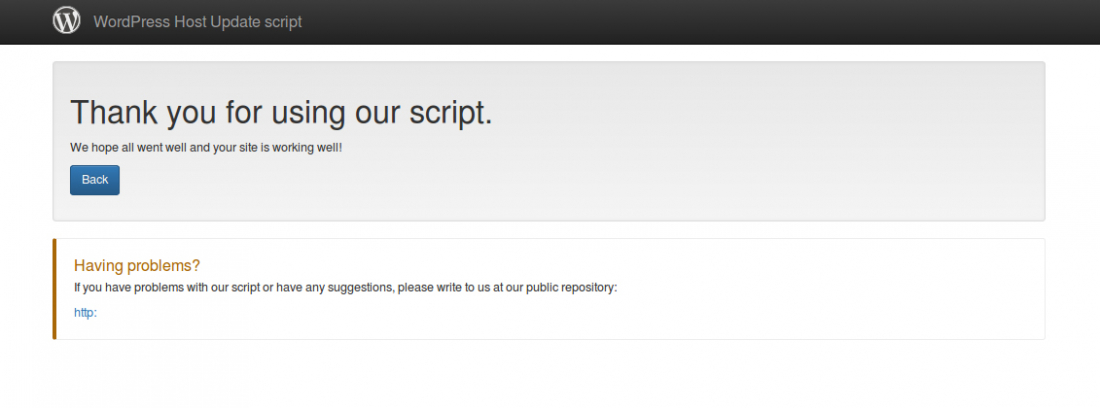
- The script will try to determine and pre-fill the values for your server, in most cases you don’t need to change them. After you have made sure they are correct, click “Do The Magic! button. You will see a progress bar and small log showing the update process. Once complete you will see the following screen:
:
- You are done and may enjoy your WordPress site at another server.
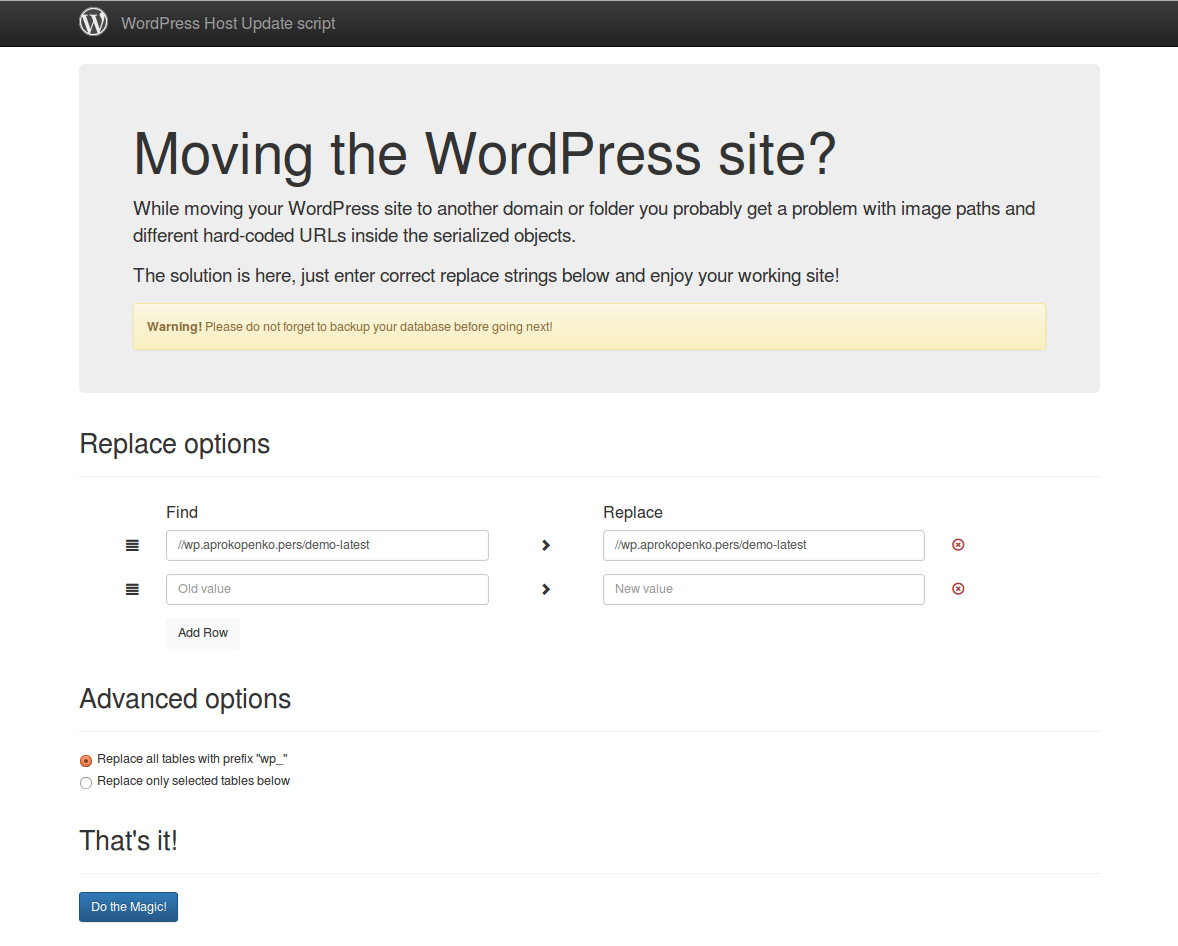
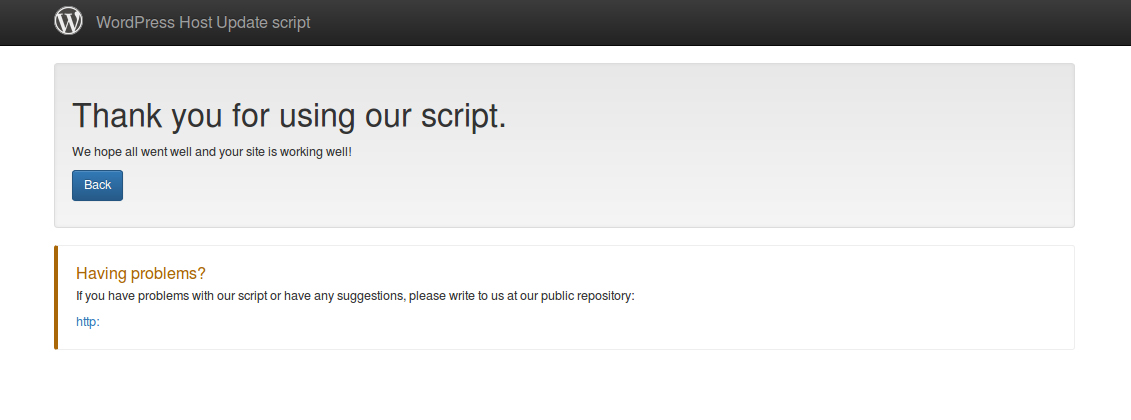
Notes: If you use permalinks you should go to the WP admin panel and update the permalinks structure, after running the script.
WordPress MultiSite support
If you run a MultiSite installation you will see additional options can be selected. This is because MultiSite installation has a few special tables, which store URLs in different formats. So, they should be updated separately.
Here, you should specify the domain name without http or https prefix!
Even more
Our script can not only be used to replace URLs, it can add more settings or strings to replace. For example, say you post a lot of articles a bout some brand. And the brand name changes. You can write the old brand name into the “Find column and the new brand name into “Replace and the script will replace all text strings for you.
Download
Our script is open source and is hosted on github.com.
Ready to use script is placed inside the “build directory in the repository. We recommend using the latest tags for download.
If you have any problems, please write to us on github issues page.